
Getting Started with FacePop API
Welcome to the FacePop API documentation. This guide will help you set up and start using our API effectively.
API Base URL
All API requests should be sent to:
https://api.answerly.io
Our endpoints follow this pattern:
https://api.answerly.io/facepop/[endpoint]
For example: /facepop/all, /facepop/edit, etc.
Getting Your API Key
To use the FacePop API, you'll need an API key:
- Go to https://app.facepop.io/workspace/apikeys
- Make sure you select 'FacePop' in the checkbox
- Give your key a name
- Click 'Create Key'
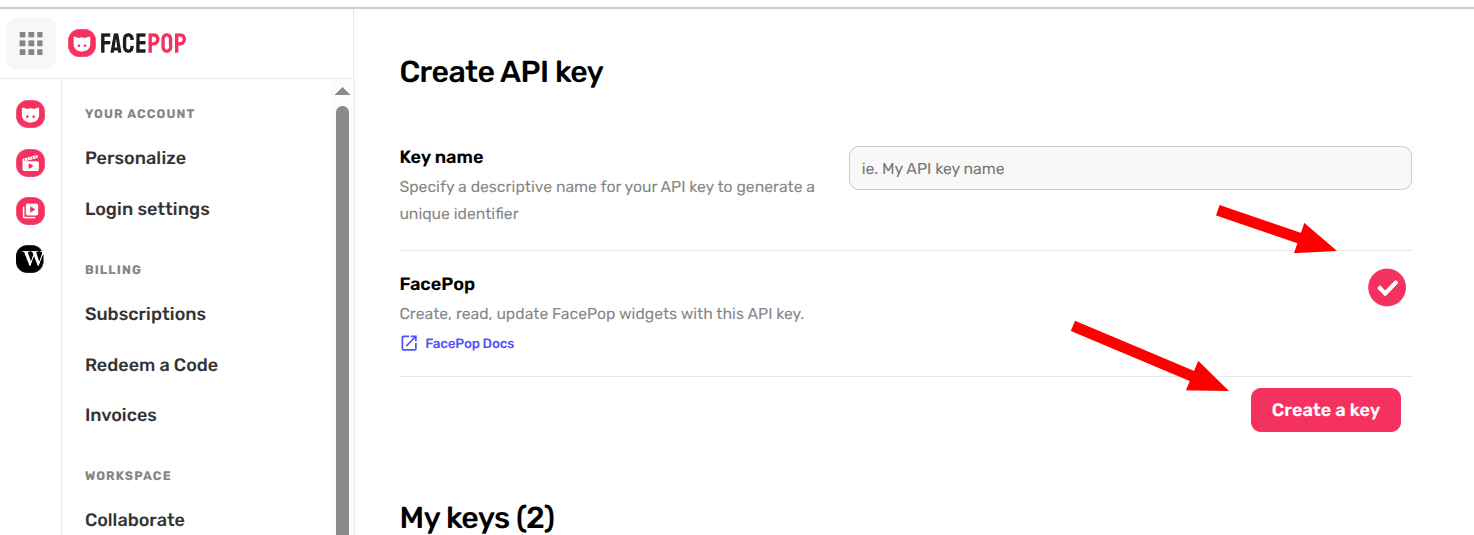
After creating your key, copy and store it securely. Important: You cannot recover this key later.
Making API Requests
When using the FacePop API, please note:
- All endpoints accept POST requests only
- Request bodies must be in JSON format
- Your API key should be included in every request as the
APIKeyfield in the JSON body - Most endpoints require the
facepopobject, which represents your entire FacePop widget
Example request structure:
{
  "APIKey": "your_api_key_here",
  "facepop": {
    // FacePop object properties
  }
}
To learn more about the FacePop object structure, visit /facepop-object.
API Response Format
The API will always respond with one of the following structures:
Successful response:
{
  status: true,
  data: [
    // list of your facepops
  ]
}
Failed response:
{
  status: false,
  data: "Text reason why your request failed that you can display to customers"
}